Recording internet radio has become essential for millions of Americans who want to capture live broadcasts, create podcasts, or archive favorite shows. Whether you’re using a PC, smartphone, or Android device, recording internet radio streams is straightforward with the right tools and techniques. This comprehensive guide covers everything from free recording software to professional setups, ensuring you can capture high-quality audio from any online radio station in 2026.
Understanding Internet Radio Recording in 2026
Internet radio continues to thrive in the United States with over 228 million monthly listeners as of 2026, representing a 12% increase from 2024. Recording internet radio involves capturing streaming audio data transmitted over IP networks and saving it to your device. Unlike traditional FM/AM recording, online radio recording provides digital-quality audio without signal interference or degradation. The process captures data packets as they stream to your device, converting them into standard audio files like MP3, AAC, or FLAC.
Modern internet radio recording technology in 2026 supports automatic scheduling, metadata tagging, and simultaneous multi-station recording. Most streaming services now broadcast at 192-320 kbps bitrates, ensuring professional-quality recordings suitable for archival, content creation, or personal listening. The legality of recording internet radio for personal use falls under fair use provisions in the United States, though redistribution requires proper licensing and permissions from copyright holders.
Essential Equipment and Software for Recording
Successfully recording internet radio requires minimal equipment but specific software capabilities. Your primary needs include a stable internet connection with at least 5 Mbps download speed, sufficient storage space for audio files, and appropriate recording software. Most radio recording applications consume 1-2 MB per minute of recorded audio at standard quality settings, meaning a one-hour show requires approximately 60-120 MB of storage space.
Free Recording Software Options
Several free recording tools dominate the 2026 market for internet radio capture. Audacity remains the most popular open-source option with 47 million active users in the United States, offering multi-track recording, audio editing, and support for dozens of file formats. Streamripper specializes in separating individual songs from continuous streams, automatically creating separate files for each track with proper metadata. RadioSure provides a database of over 18,000 stations with built-in recording functionality activated through a single click.
For users seeking simplicity, Online Voice Recorder and Apowersoft Free Online Audio Recorder offer browser-based solutions requiring no software installation. These tools record audio streams directly through your web browser, saving files to your downloads folder. However, free options typically limit recording duration to 2-4 hours per session and may include occasional advertisements or watermarks on exported files.
Professional Recording Solutions
Professional broadcasters and serious enthusiasts invest in premium recording software offering advanced features and reliability. RadioBOSS ($89-$299 annually) provides automated recording schedules, simultaneous multi-station capture, and professional broadcasting capabilities used by over 12,000 stations nationwide. Wondershare DemoCreator ($35.99/year) combines screen recording with audio capture, ideal for creating tutorials or visual content featuring internet radio.
Total Recorder ($17.95-$35.95) excels at capturing any audio passing through your sound card, making it perfect for recording protected streams that block standard recording software. Adobe Audition ($20.99/month) offers professional-grade recording with spectral editing, noise reduction, and batch processing capabilities used by NPR affiliates and major podcast producers. These professional tools provide 24/7 recording stability, automatic file organization, and integration with content management systems.
How to Record Internet Radio on PC
Recording internet radio on Windows or Mac computers offers the most flexibility and highest audio quality options. Desktop recording provides access to professional software, larger storage capacity, and simultaneous recording of multiple stations. The process begins with selecting appropriate software, configuring audio settings, and establishing connection to your desired radio stream.
Windows PC Recording Steps
Windows users can record internet radio using native features or third-party applications. Download and install Audacity from audacityteam.org, ensuring you also install the LAME MP3 encoder for MP3 export compatibility. Launch Audacity and navigate to Edit → Preferences → Recording, selecting Windows WASAPI as your audio host and your speakers/headphones as the recording device. This configuration captures system audio directly, ensuring high-quality recording without external noise.
Open your preferred internet radio website or application and begin playback. In Audacity, click the red Record button to start capturing the audio stream. The waveform display shows real-time recording levels, which should peak between -12 and -6 dB for optimal quality. When finished, click Stop, then File → Export → Export as MP3. Configure metadata tags including artist, title, and station information before saving. For scheduled recordings, use Windows Task Scheduler to launch recording software automatically at specific times.
Mac Computer Recording Process
Mac users have multiple options for recording internet radio streams effectively. QuickTime Player, included with macOS, offers simple audio recording through File → New Audio Recording. Click the dropdown arrow beside the record button to select your audio source, choosing Soundflower or BlackHole as a virtual audio device to capture system audio. Install BlackHole (free) from existential.audio to route internet audio into QuickTime for recording.
Alternatively, Audio Hijack ($64) provides Mac users with the most powerful recording solution, featuring automatic scheduling, audio enhancement, and direct recording from specific applications. Create a new session, select your browser or radio app as the source, add recording and enhancement blocks, then click Record. The software automatically splits recordings into separate files per track and applies metadata tags from streaming information. Mac users recording through browsers should disable any VPN software that might interfere with stream quality or cause connection drops.
Recording Internet Radio on Mobile Devices
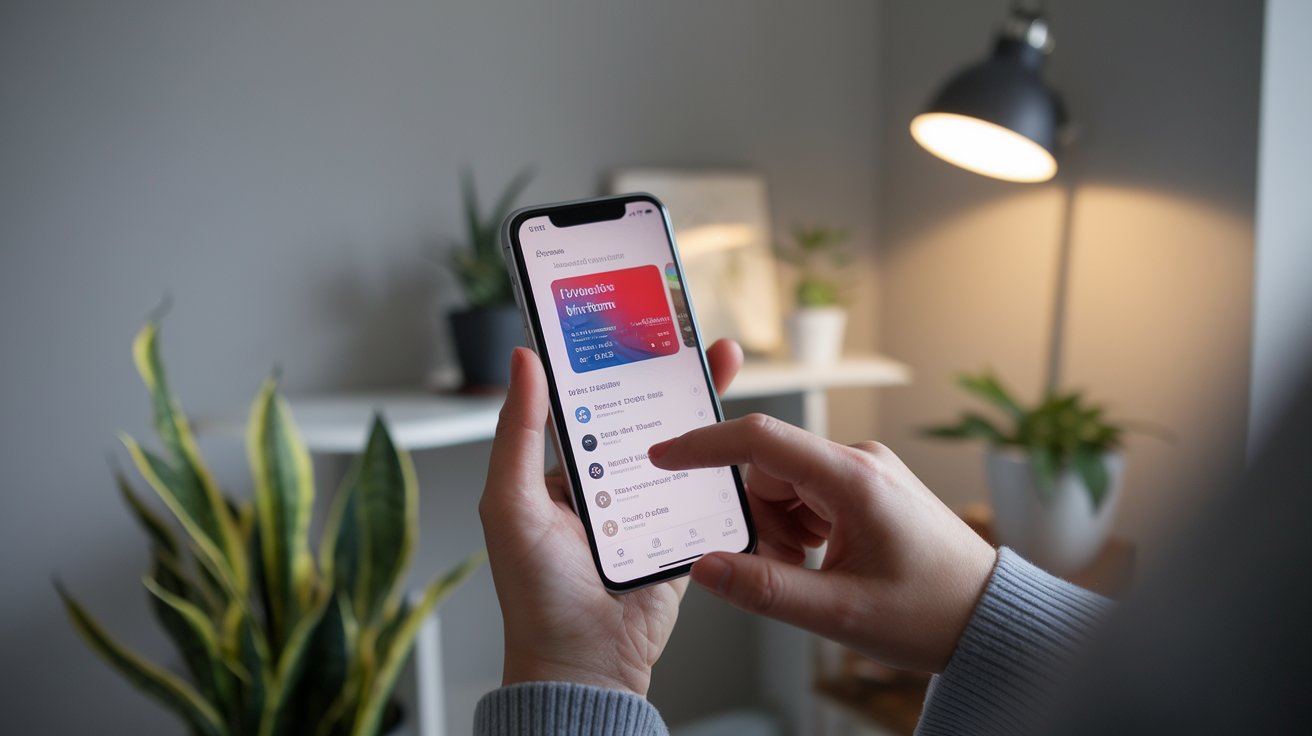
Mobile recording has surged in popularity with 68% of American internet radio listeners using smartphones as their primary device in 2026. Recording radio on phones requires specialized apps designed to capture streaming audio while managing battery consumption and storage limitations. Mobile recording works best with WiFi connections rather than cellular data to ensure consistent audio quality and avoid data cap issues.
Android Recording Methods
Android devices offer the most flexibility for recording internet radio streams due to the platform’s open architecture. Install Audacity for Android (free) from Google Play Store, which provides desktop-quality recording features in mobile format. Launch the app, tap the red Record button, then switch to your internet radio application and begin playback. Audacity captures all system audio, recording the stream directly to MP3 or WAV format based on your quality preferences.
Alternative options include RadioDroid (free), which combines a database of 50,000+ stations with integrated recording functionality. Tap any station to begin playback, then press the Record icon to capture the stream. The app automatically saves recordings to your device’s Music folder with station name and timestamp. For scheduled recording, Radio Recorder & Alarm ($2.99) allows you to set recording times up to one week in advance, perfect for capturing shows that air while you’re unavailable. Android 12 and newer versions may require manual permission grants for screen recording features used by some apps.
iPhone and iPad Recording Solutions
iOS devices face more restrictions for recording internet radio due to Apple’s security policies preventing direct system audio capture. The most reliable method uses the built-in Screen Recording feature introduced in iOS 11. Open Settings → Control Center → Customize Controls and add Screen Recording to your control panel. When ready to record, open Control Center, press firmly (or long-press) on the Screen Recording button, and enable Microphone Audio to OFF—this counterintuitively enables internal audio recording.
Start screen recording, then open your radio app and begin playback. The recording captures all audio playing through your device speakers or headphones. Stop recording from the red status bar at the top of your screen. The recording saves to Photos as a video file; extract audio using Shortcuts app or third-party converters. Dedicated apps like TuneIn Radio Pro ($9.99) include built-in recording features that bypass iOS restrictions, storing recordings directly in the app. Note that iPhone recordings typically produce larger file sizes than Android equivalents due to video container formats.
How to Record Live Stream Radio Shows
Capturing live stream radio broadcasts requires timing precision and technical preparation to ensure you don’t miss crucial content. Live streaming differs from on-demand content because recordings must happen in real-time as broadcasts air. Schedule conflicts, time zone differences, and unexpected technical issues make automated recording solutions essential for serious radio archivists and content creators.
Set up scheduled recordings by identifying your target show’s exact broadcast time, accounting for your local time zone. Most professional recording software includes scheduling features that automatically launch recording at specified times. Configure your software to start recording 2-3 minutes before the official broadcast time and continue 5 minutes after to capture any overrun content. Ensure your computer or device won’t enter sleep mode during recording by adjusting power settings. Use a dedicated streaming URL rather than website players when possible, as direct stream URLs provide more stable connections and better audio quality for recording.
Recording Radio Shows for Podcast Creation
Converting recorded radio shows into podcast content has become a major trend with over 34,000 former radio personalities now producing independent podcasts in 2026. The process involves recording your radio content, editing for podcast format, and adding intro/outro segments. Professional podcasters use audio editing software to remove commercials, adjust audio levels, and insert custom content before distribution.
Begin by recording your radio show using any method described previously, ensuring high-quality audio at 192 kbps or higher bitrate. Import the recording into audio editing software like Audacity, Adobe Audition, or Reaper. Remove commercial breaks, station identifications, and irrelevant content using cut and fade tools. Apply compression and normalization to ensure consistent volume levels throughout the recording. Add your custom intro and outro segments, then export as MP3 with -16 LUFS loudness for podcast standards. Most successful podcast creators recording from radio shows maintain 15-30 minute episode lengths, even if the original broadcast ran longer.
Legal Considerations for Recording Internet Radio
Understanding the legal aspects of recording internet radio protects you from copyright infringement while enabling legitimate personal use. United States copyright law permits recording broadcasts for time-shifting purposes under fair use doctrine, similar to recording television shows with DVR devices. You may record internet radio for personal listening, create backup copies, or shift listening times without legal consequences.
However, redistributing recorded radio content violates copyright law unless you obtain explicit permission from copyright holders. Uploading recordings to YouTube, sharing via file-sharing services, or broadcasting recorded content requires licensing agreements. Commercial use, including incorporating radio recordings into products or services, demands proper licensing from performing rights organizations like ASCAP, BMI, and SESAC. In 2026, automatic content recognition systems can detect unauthorized radio recordings online, leading to takedown notices and potential legal action. Educational institutions and libraries maintain special exemptions allowing radio recording for archival and research purposes under specific conditions outlined in the Copyright Act Section 108.
Optimizing Audio Quality in Radio Recordings
Achieving professional audio quality in your radio recordings depends on proper configuration and understanding audio technical specifications. Internet radio streams typically broadcast between 64-320 kbps bitrate, with most stations using 128-192 kbps as a balance between quality and bandwidth. Your recording quality cannot exceed the source stream quality, making station selection important for archival purposes.
Audio Format Selection
Choose recording formats based on your intended use and storage capacity. MP3 format (128-320 kbps) provides excellent compatibility across all devices with manageable file sizes, making it ideal for mobile listening and sharing. A one-hour recording at 192 kbps MP3 occupies approximately 86 MB storage. AAC format delivers superior quality at lower bitrates, with 128 kbps AAC matching 192 kbps MP3 quality while using 30% less storage space.
For archival purposes, FLAC (Free Lossless Audio Codec) preserves original stream quality without compression artifacts, though files consume 3-5 times more storage than MP3 equivalents. WAV format offers uncompressed audio suitable for professional editing but creates massive files inappropriate for casual listening. Most radio recording enthusiasts use 320 kbps MP3 or 256 kbps AAC as optimal formats, balancing quality with reasonable file sizes and universal device compatibility.
Recording Environment Setup
Create an optimal recording environment by minimizing potential interference and system resource conflicts. Close unnecessary applications consuming bandwidth or processing power during recording sessions. Disable system sounds, notification alerts, and automatic updates that might inject unwanted audio into your recordings. Connect your computer directly to your router via Ethernet cable rather than using WiFi when possible, reducing latency and preventing dropouts.
Configure your recording software to save files to local drives rather than network or cloud storage to prevent write delays. Set buffer sizes appropriately in your recording software—larger buffers (512-1024 samples) prevent dropouts but increase latency, while smaller buffers reduce latency but may cause audio glitches on slower systems. Monitor CPU usage during recording sessions; usage consistently above 80% indicates potential problems. Consider dedicated recording devices or computers for important captures, eliminating competing processes entirely.
Troubleshooting Common Recording Problems
Even experienced users encounter radio recording issues requiring systematic troubleshooting. Audio dropouts, sync problems, and quality degradation represent the most common complaints among the 8.4 million Americans who regularly record internet radio. Understanding root causes and solutions prevents recording failures and ensures reliable audio capture every time.
Audio dropouts manifest as brief silences or skips in recordings, typically caused by insufficient bandwidth or system resource constraints. Test your internet connection speed at speedtest.net, ensuring download speeds exceed the stream bitrate by at least 2x margin. Close bandwidth-intensive applications like video streaming, cloud backups, or file downloads during recording sessions. If problems persist, reduce the recording quality settings or upgrade your internet service plan. Choppy or distorted audio indicates buffer underruns; increase buffer sizes in your recording software settings or reduce system load by closing unnecessary applications.
Organizing and Managing Recorded Radio Content
Effective organization systems become essential as your recorded radio library grows beyond 50-100 files. The average serious radio recorder accumulates 200-500 GB of audio files annually, making systematic management crucial for finding and accessing content. Implement folder structures, naming conventions, and metadata tagging to maintain searchable radio archives accessible for years.
Create a folder hierarchy organizing recordings by station, show name, and date. Example structure: Radio_Recordings → Station_WXYZ → Morning_Show → 2026 → January. Use consistent file naming conventions like YYYY-MM-DD_Station_ShowName_Description.mp3 enabling alphabetical sorting by date. Apply ID3 metadata tags including Title, Artist (host name), Album (show name), Year, and Comments fields with episode descriptions. Software like Mp3tag (free) allows batch metadata editing for large collections.
Consider using media management software like MusicBee or MediaMonkey to catalog radio recordings alongside music libraries. These applications enable searching across metadata fields, creating smart playlists based on recording criteria, and syncing content to mobile devices. Back up your radio recording collection using the 3-2-1 rule: maintain three copies on two different media types with one copy offsite. Cloud storage services like Backblaze ($70/year unlimited) or external hard drives provide reliable backup solutions protecting against data loss.
Related video about how to record internet radio
This video complements the article information with a practical visual demonstration.
FAQ – Common Questions
How can I record internet radio on my phone for free?
You can record internet radio on your phone for free using apps like Audacity for Android or the built-in Screen Recording feature on iPhone. For Android, download RadioDroid from Google Play Store which offers integrated recording functionality for over 50,000 stations worldwide. iPhone users should enable Screen Recording in Control Center settings, then capture audio by recording your screen while playing internet radio. The recording saves to your Photos app, where you can extract the audio using free converter apps or the Shortcuts application built into iOS.
What is the best quality format for recording internet radio?
The best quality format depends on your intended use, but 320 kbps MP3 or 256 kbps AAC provides optimal balance between audio quality and file size for most users. For archival purposes, FLAC (Free Lossless Audio Codec) preserves original stream quality without compression, though files are 3-5 times larger. Professional broadcasters typically use 192-256 kbps MP3 as it maintains excellent audio fidelity while creating manageable file sizes. Remember that your recording quality cannot exceed the source stream quality, so recording a 128 kbps stream in FLAC format provides no quality benefit over MP3.
Is it legal to record internet radio in the United States?
Yes, recording internet radio for personal use is legal in the United States under fair use doctrine, similar to recording television shows with a DVR. You may record broadcasts for time-shifting purposes, creating backup copies, or personal listening without legal consequences. However, redistributing recorded content, uploading to YouTube, sharing via file-sharing services, or any commercial use requires explicit permission from copyright holders and appropriate licensing. Educational institutions and libraries have special exemptions for archival purposes under Copyright Act Section 108, but individual users must limit recordings to personal, non-commercial use.
Why does my internet radio recording have dropouts or skips?
Recording dropouts typically result from insufficient internet bandwidth or system resource constraints during capture. Ensure your internet download speed exceeds the stream bitrate by at least 2x margin—test at speedtest.net to verify. Close bandwidth-intensive applications like video streaming, cloud backups, or large downloads during recording sessions. System resource issues occur when CPU usage exceeds 80%; close unnecessary applications or increase buffer sizes in your recording software settings. Using a wired Ethernet connection instead of WiFi significantly reduces dropout occurrences by providing more stable connectivity and lower latency.
How much storage space do I need for recording internet radio?
Storage requirements depend on recording quality and duration, but expect approximately 1-2 MB per minute at standard quality settings. A one-hour radio show recorded at 192 kbps MP3 quality occupies about 86 MB, while 320 kbps recordings use approximately 144 MB per hour. If you record daily one-hour shows, you need roughly 2.6-4.3 GB monthly or 31-52 GB annually. For serious radio archivists recording multiple shows daily, budget 200-500 GB annual storage capacity. Modern external hard drives offering 2-4 TB capacity ($50-80) provide ample space for extensive radio recording collections with room for backup copies.
Can I schedule automatic internet radio recordings while I’m away?
Yes, most professional recording software includes scheduling features enabling automatic recordings at specified times. Applications like RadioBOSS, Replay Radio, and Streamwriter allow you to set recording schedules up to weeks in advance. Configure recordings to start 2-3 minutes before broadcast time and extend 5 minutes after to capture complete content. Ensure your computer power settings prevent sleep mode during scheduled recordings, and use direct streaming URLs rather than website players for reliability. For mobile devices, apps like Radio Recorder & Alarm (Android) provide scheduling capabilities, though desktop solutions offer more reliability for unattended recording sessions.
| Recording Method | Best For | Cost Range | Key Advantage |
|---|---|---|---|
| Audacity (Desktop) | Beginners and casual users | Free | Professional features without cost |
| RadioBOSS | Professional broadcasters | $89-$299/year | Automated scheduling and multi-station recording |
| RadioDroid (Android) | Mobile Android users | Free | 50,000+ stations with integrated recording |
| Screen Recording (iOS) | iPhone/iPad users | Free (built-in) | No additional software required |
| Audio Hijack (Mac) | Mac power users | $64 one-time | Advanced routing and automatic enhancement |